Brighter Borough User Documentation for Members
Contents
- Introduction
- Logging On
- Tabs
- Viewing or approving you grants
- Grant Archive
- Schemes
- Your Funds
- Funding Requests
- Organisation Details
1. Introduction
Brighter Borough is a system for submitting and processing brighter bough grants by community groups within the Wigan Borough.
There are three programs
- An external program that enables community groups to edit their details and submit grants
- A members/officers where members and officers can approve or decline a grant application. Councillors can create Scheme applications.
- An Administration Program that enables people to edit users, members, delete grants etc.
1.a Grant Work flow
The work flow is as follows
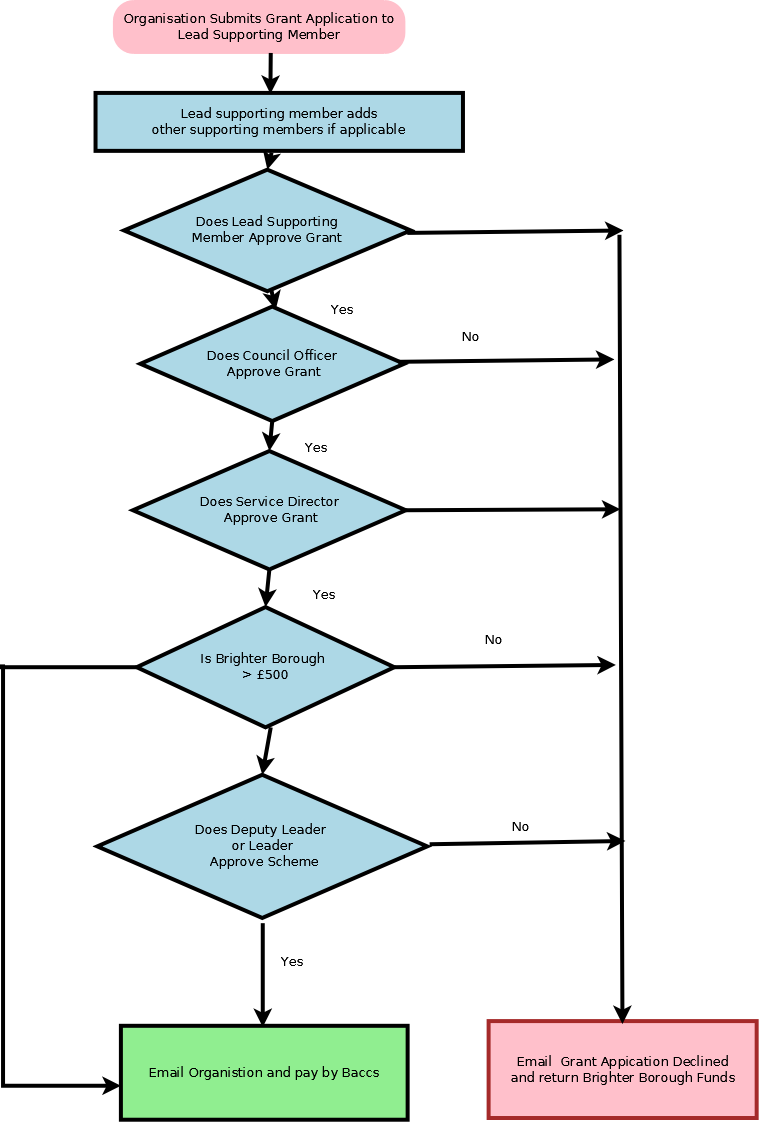
Grant WorkFlow: View full size
1.b Scheme Workflow
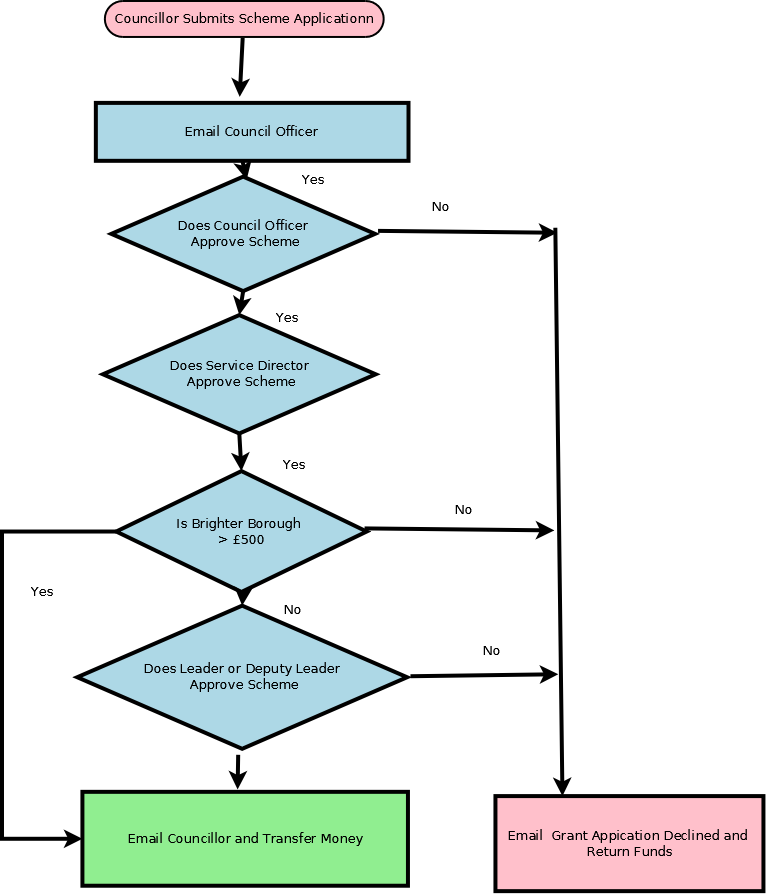
Scheme Workflow: View full size
2. Logging On
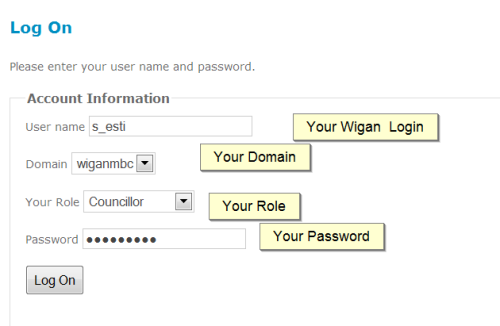
Go to Home. You should see the following
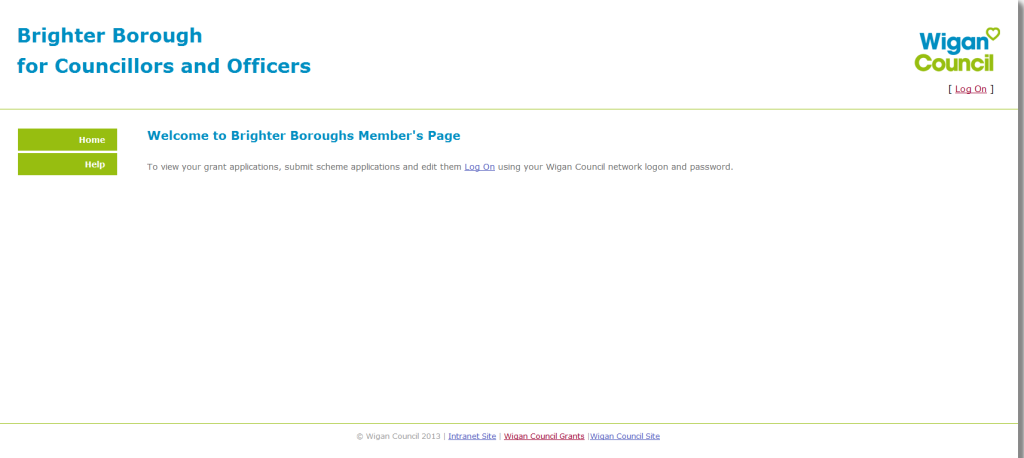
Click on the Login On link to login. You login with your wigan council login eg. j_blog and enter
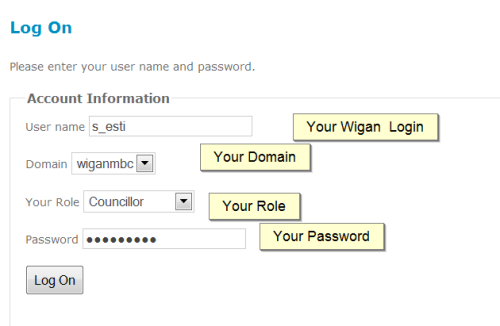
Once you have logged on you should see more tabs
Tabs
Your should see the following
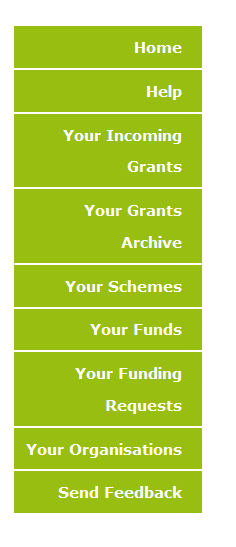
Home
This is the landing page
Your incoming grants
Your incoming grants to be approved or rejected.
Your grants archive
This list grant applications that you have rejected or approved
Your Schemes
You can create schemes and submit them to an officer
Your Funds
Lists your yearly grant, the funds you have available and what your grant money has been spent on.
Your Funding Rquests
Requests by members to help with funding of grants
4. Viewing or approving you grants
You should see you incoming grants. Click on Details. You should see the Grant details and the current status. If you wish to add more supporting members on the grant click on
Viewing Incoming Grants
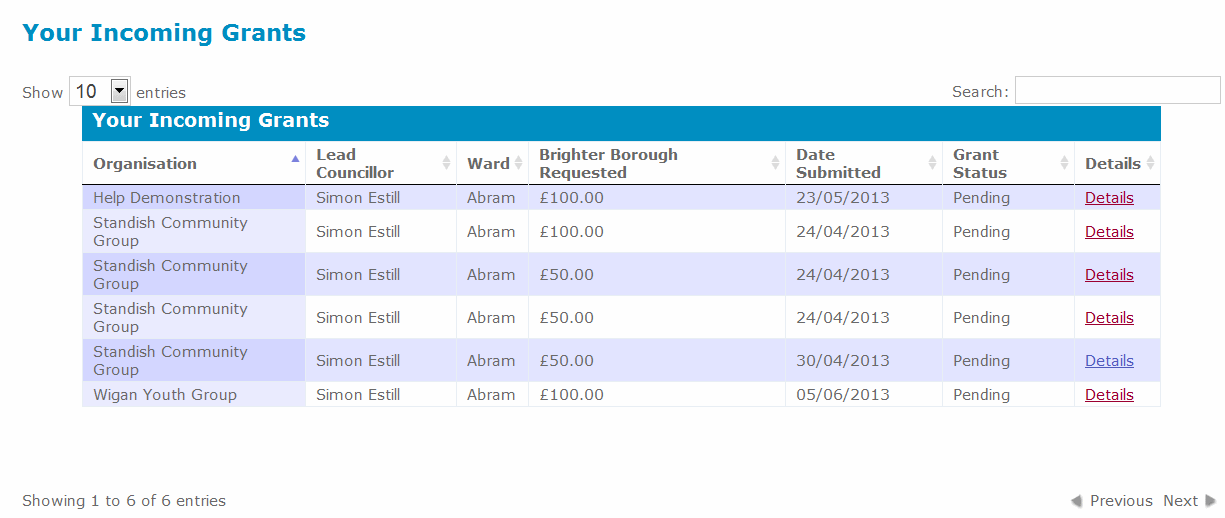
Incoming Grants: View full size
Click on details to view the grant details
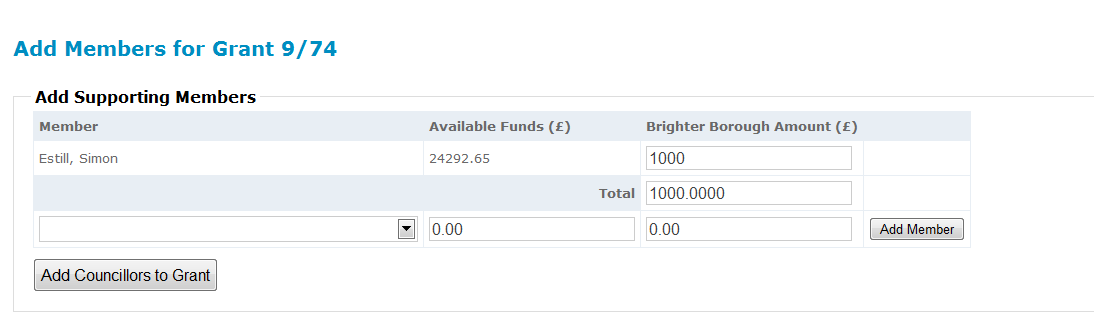
Adding Members To a Grant
Adding Members to a grant: View full size
Add Members
Select the Councillor from the Drop Down menu. This will display the funds. Add the Brighter Borough Funds they are going to contribute. (You should have the fellow councillors agreement to do this).
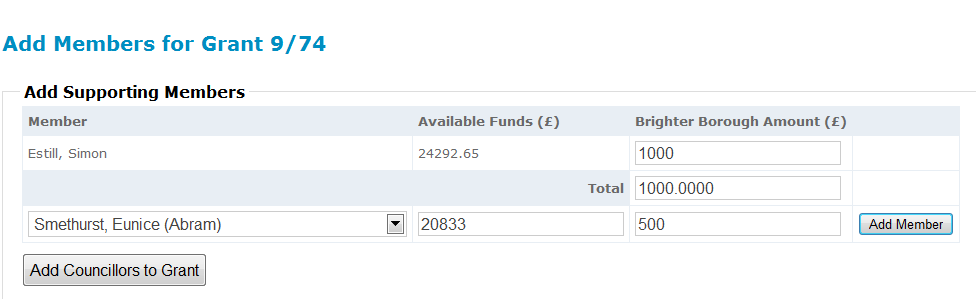
Adding Members to a grant: View full size
Press Add Member
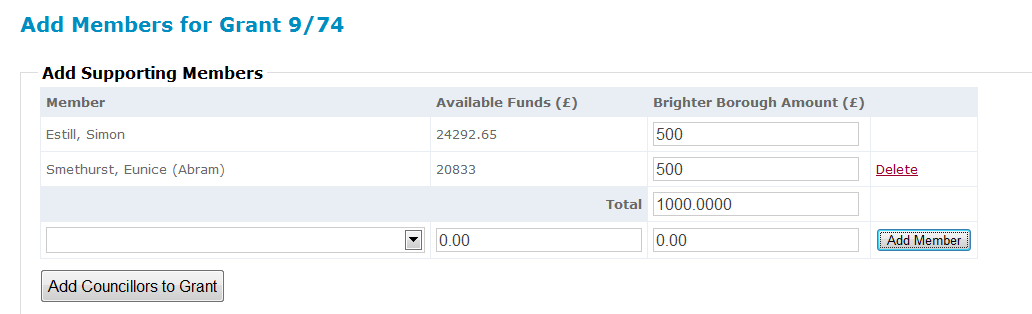
Adding Members to a grant: View full size
Repeat adding members as necessary and once you are satisfied with this click on the button displaying “Add Councillors To Grant”
Approving or rejecting Grants
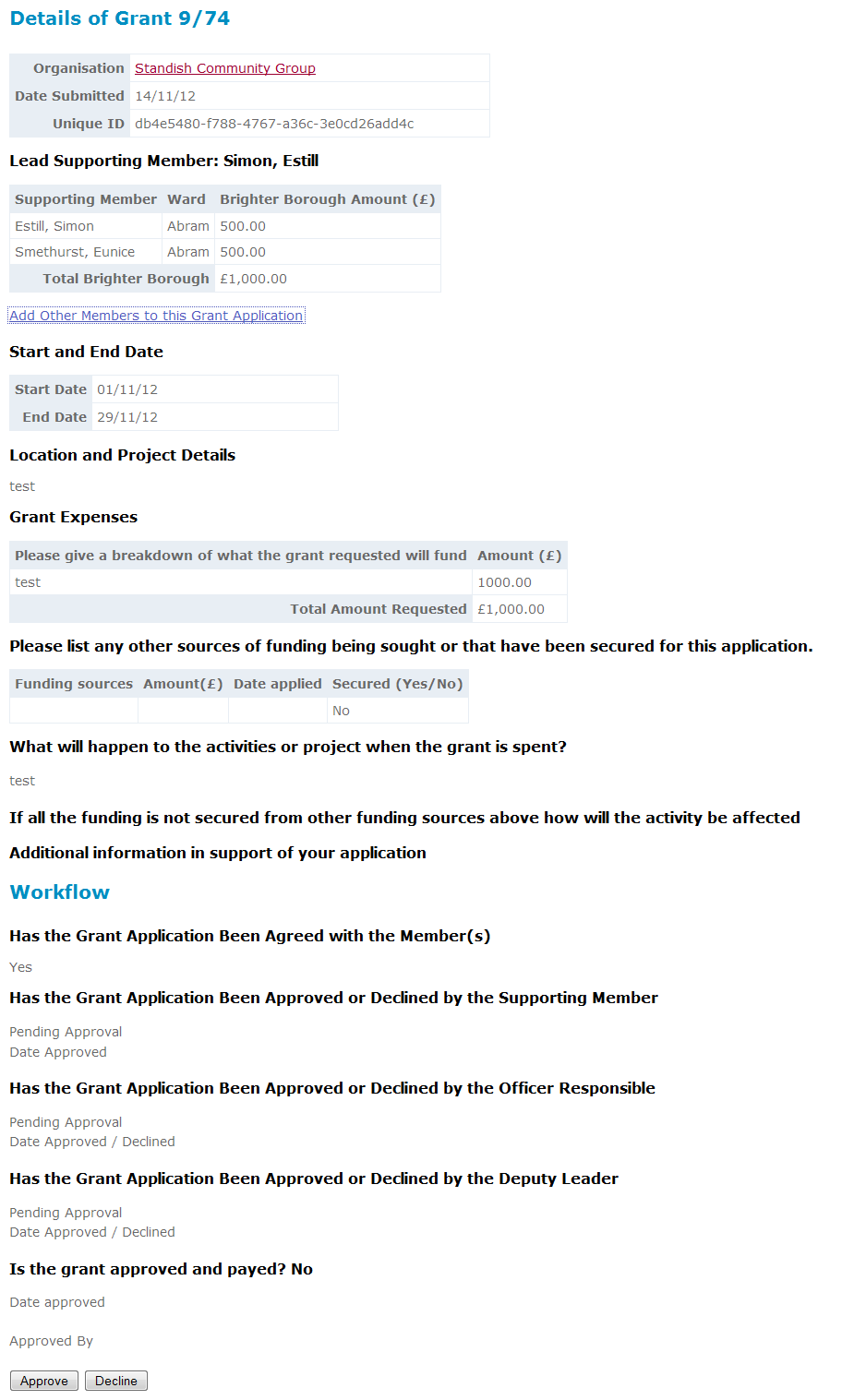
Approving or declining grants
Click on the 'Approve' Button.
The grant application will then be passed on to the Brighter Borough Team
Click on the 'Decline' button
An email will be sent to the Organisation saying the grant application is rejected and no further processing of the claim will be done
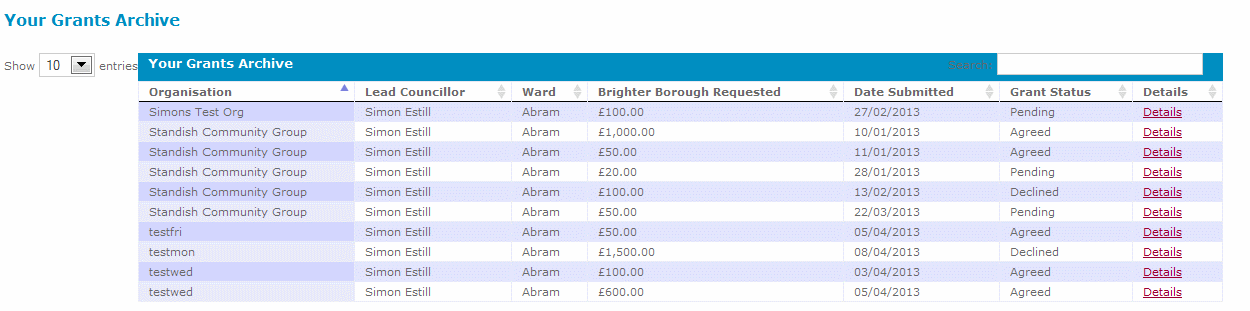
5. Grant Archive
This shows your grant applications that you have either agreed or declined
6. Schemes
Click on my Schemes
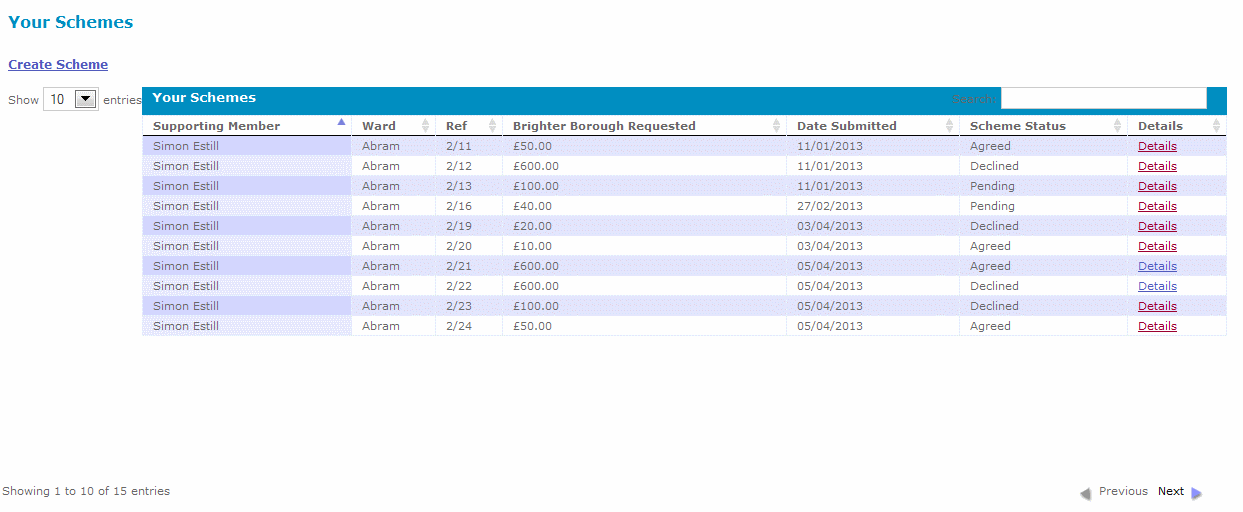
To view the details of on of your schemes and see how it progressing click details on the right of the table.
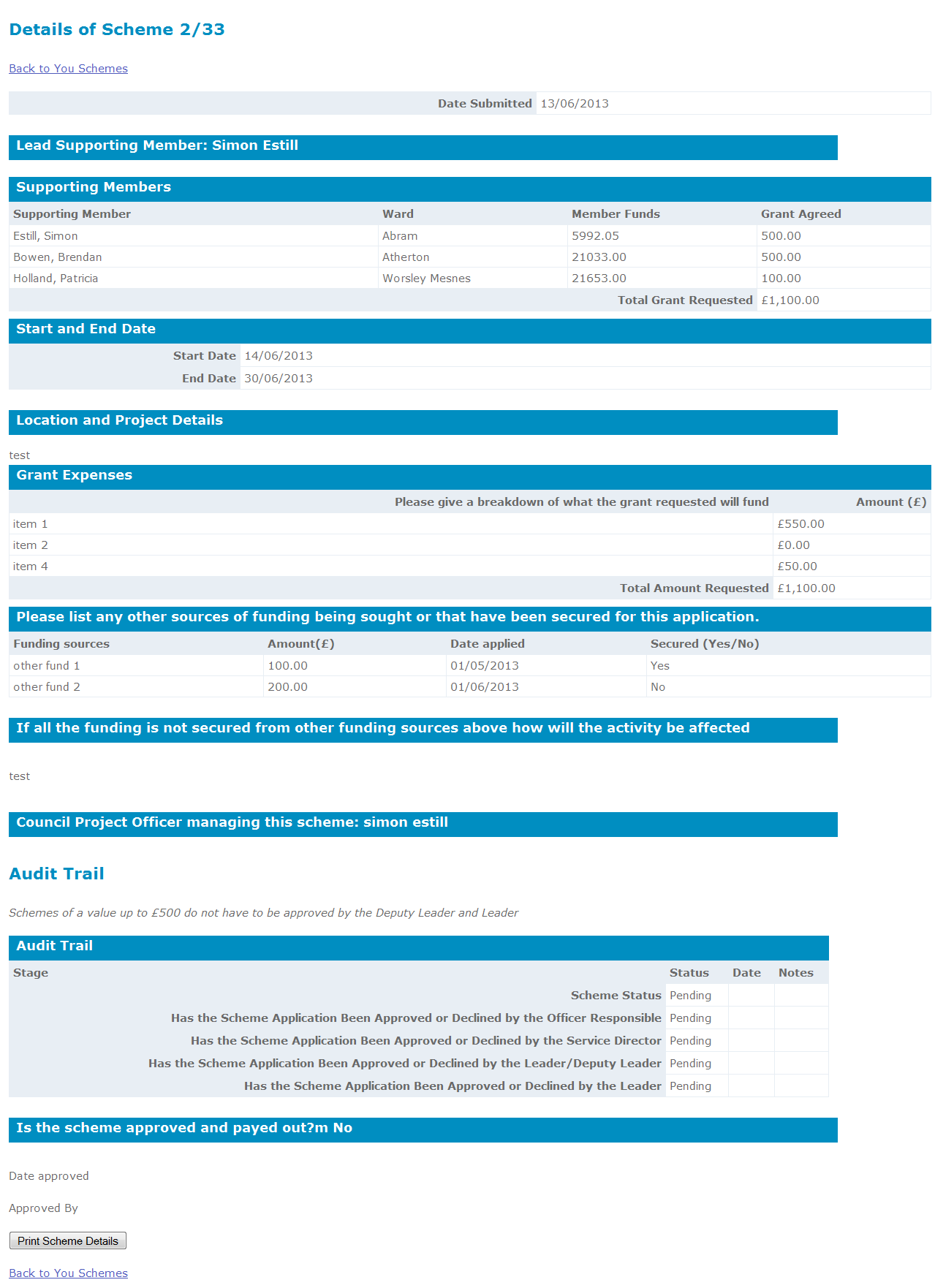
Scheme Details: View full size
To Create a Scheme click on Create Scheme on the top left.
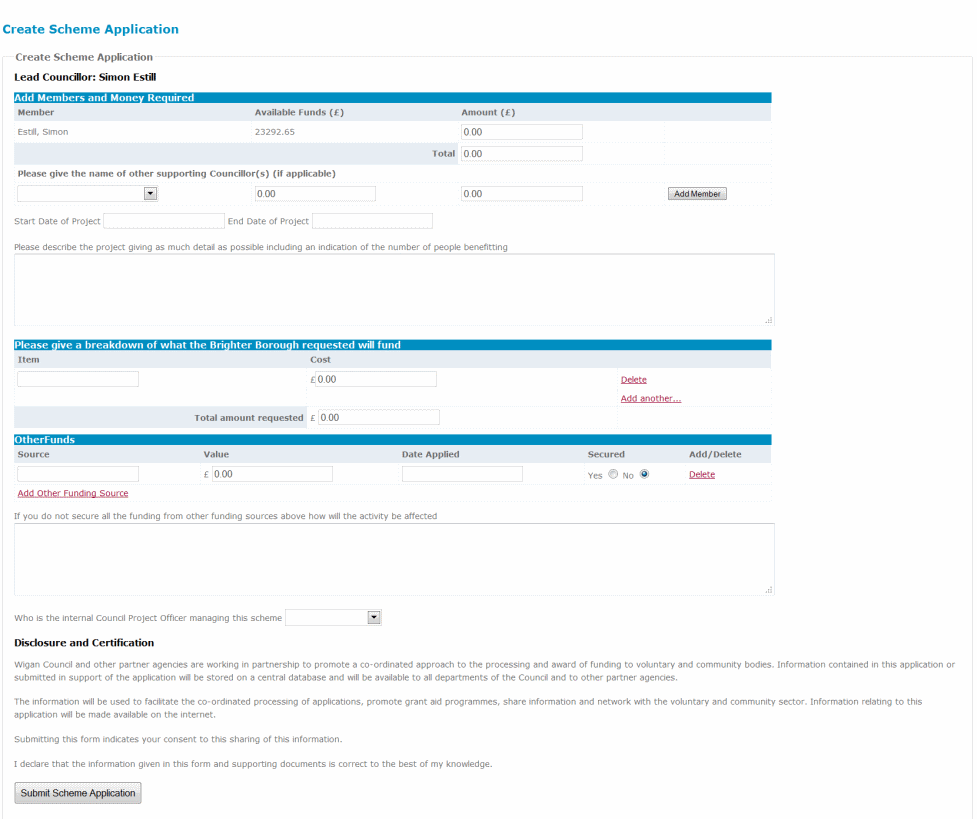
Fill in the details as shown in the following example
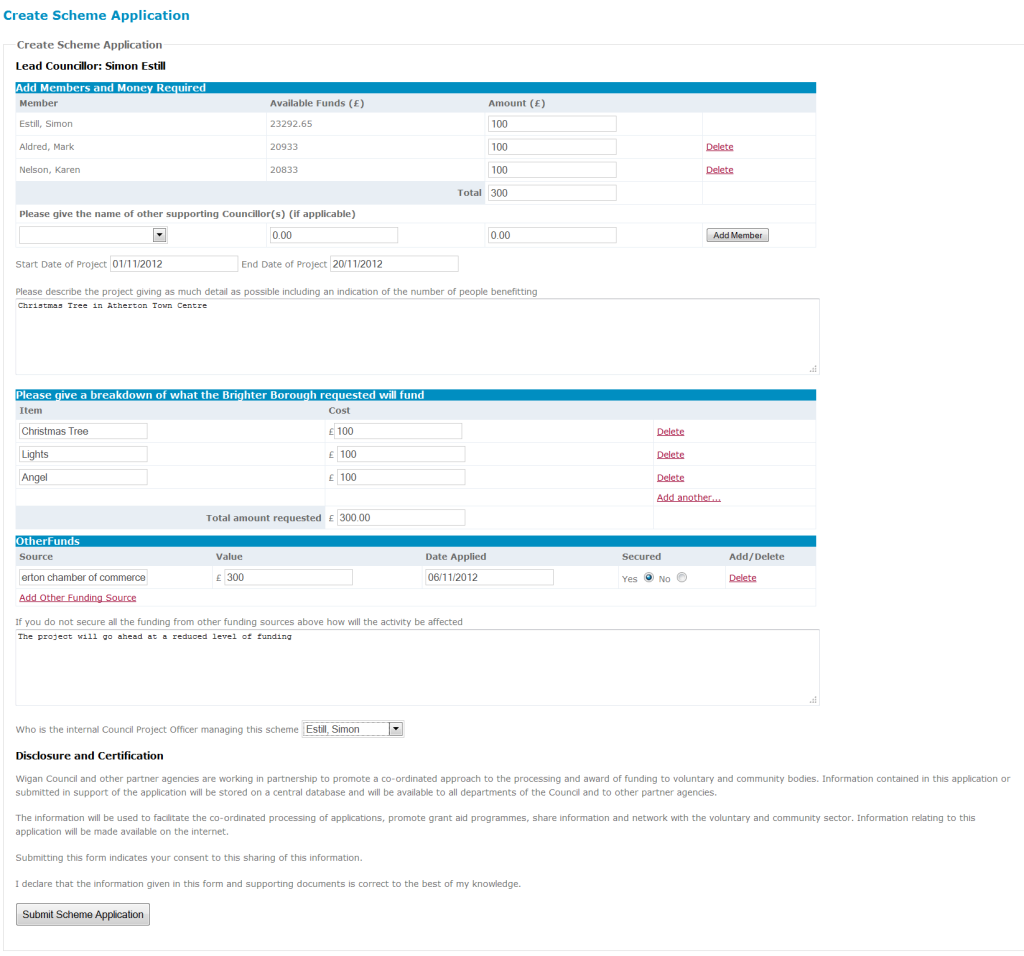
Press the “Submit Scheme Application” button. An email to the Brighter Borough team and they will either approve or decline or put the scheme on hold pending further details
6. Your Funds
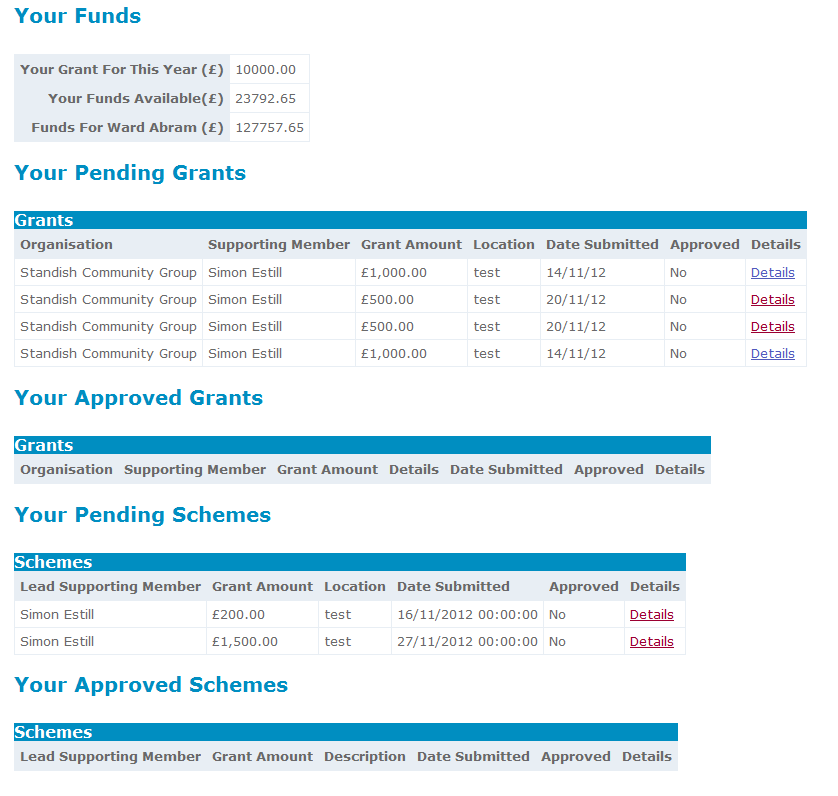
This displays you funds available. It will display the amount of Brighter Borough you have committed.
For Approved Grants and Schemes the money will have already be removed from your account.
For Pending Schemes and Grants the money will be returned to you if the Grant/Scheme is rejected.
Also displayed are the funds for your wards and your Brighter Borough Grant for this year.
7. Funding Requests
Members will somtimes request additional funds from you for grants. these are displayed in the funding requests
Click on your Funding Requests to view your funding request

Funding Requests: View full size
Click on details to view details of the grant application
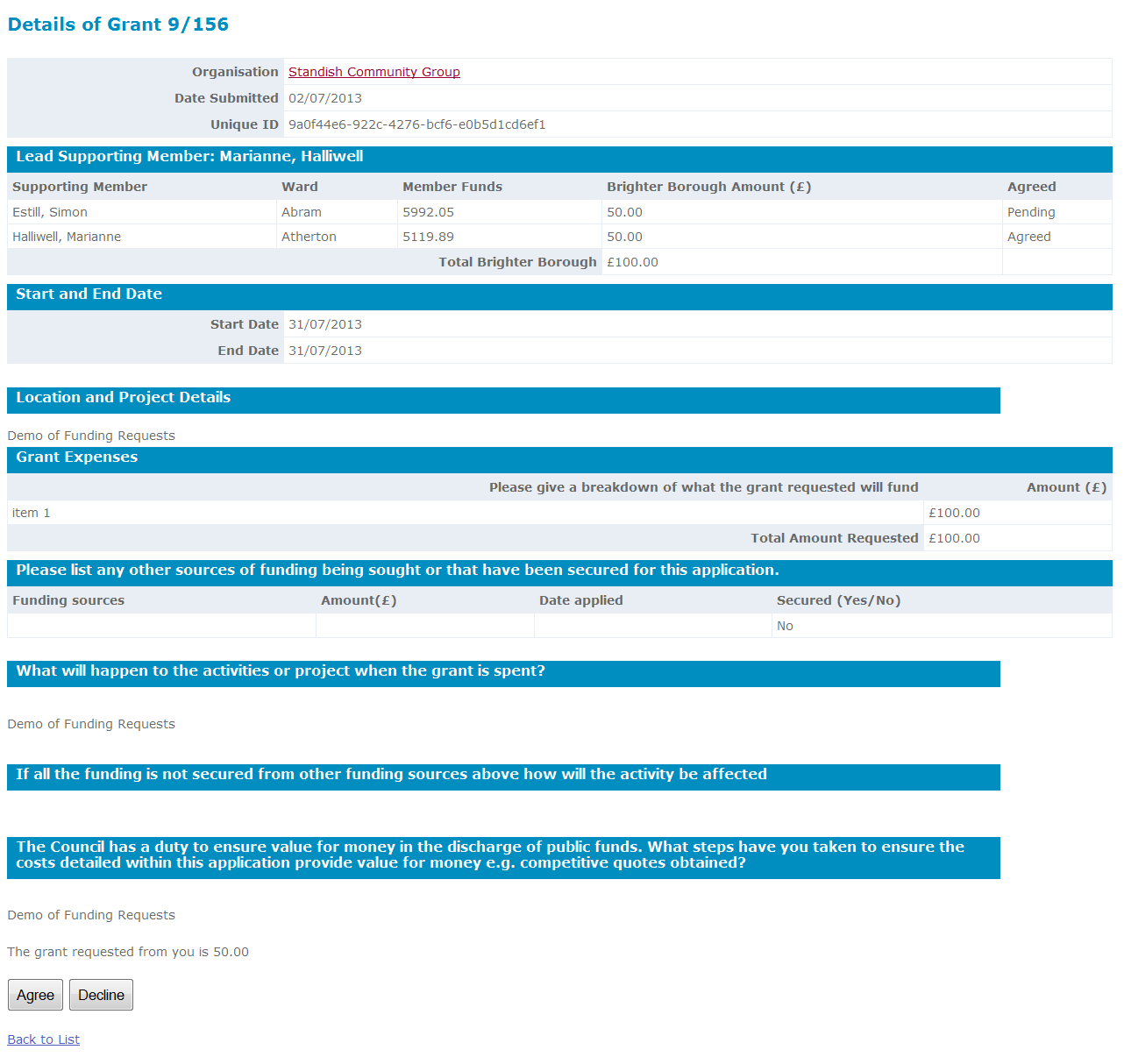
Funding Request Details: View full size
Press the 'Agree' or 'Decline' button to approve or decline this funding requests
8. Your Organisations
This shows organisations that have submitted grant applications with you
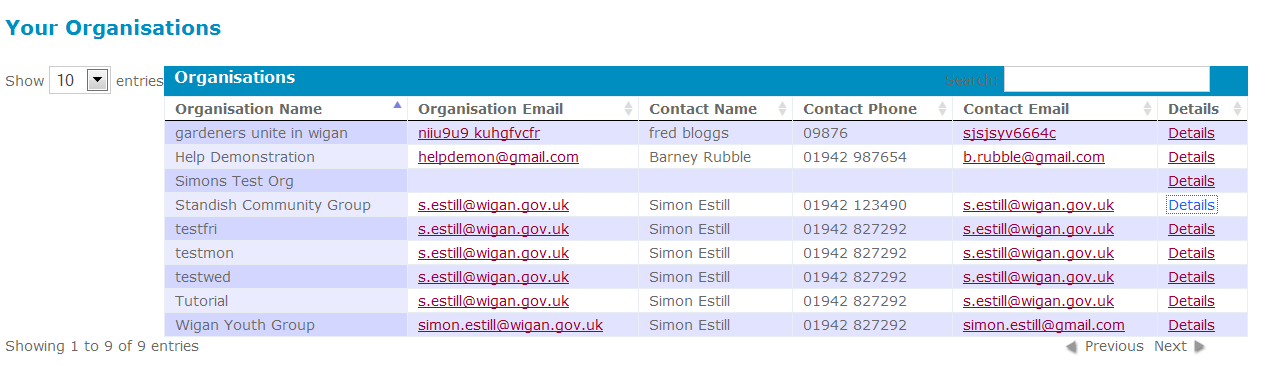
Your Organisations: View full size
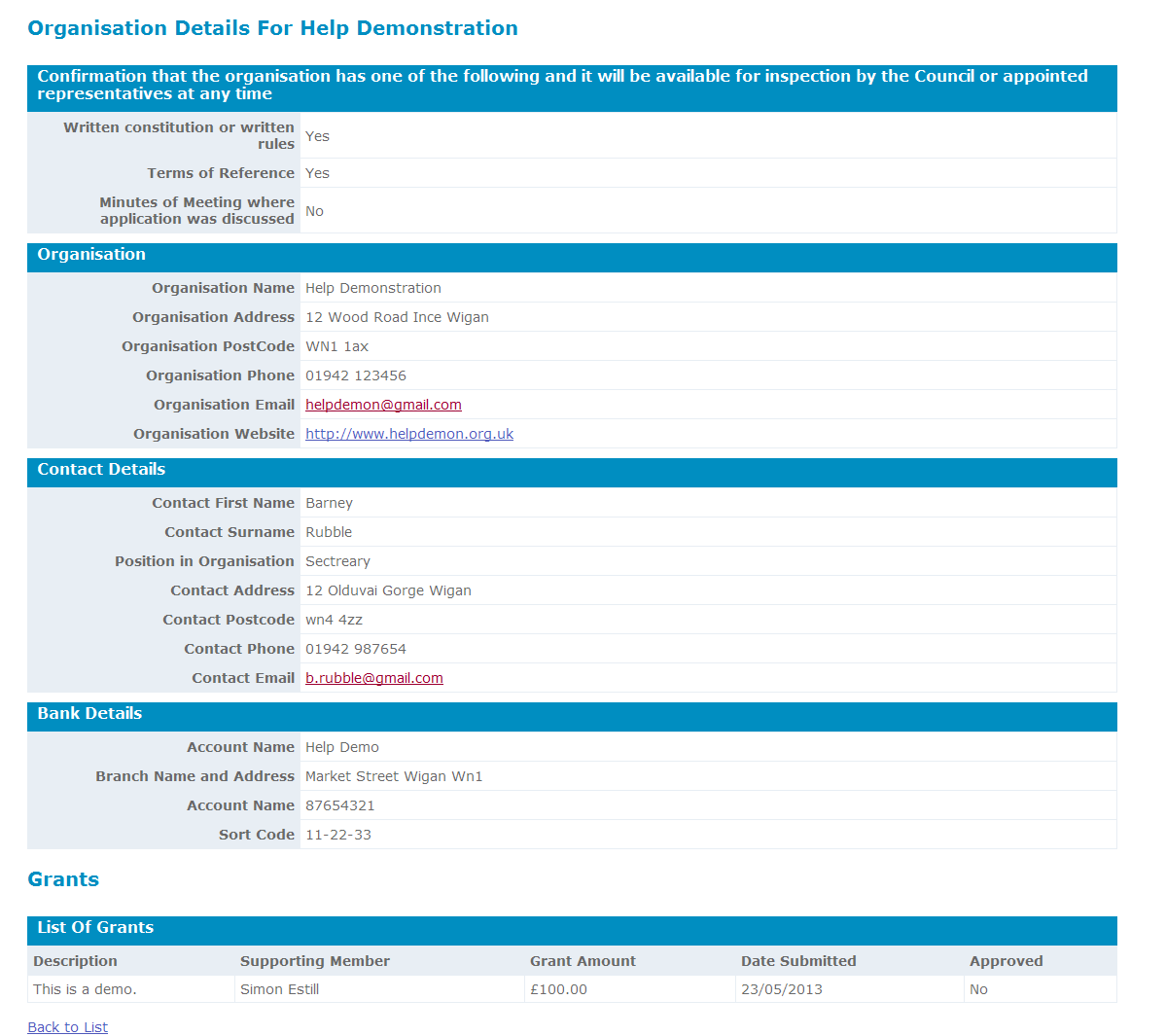
Click on details to view the organisation details